
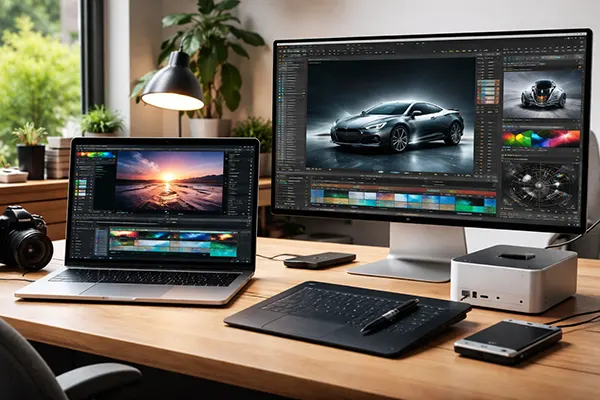
Mac for Media Work in 2026: How to Choose the Right Configuration for Video, Photography and 3D Without Overspending
Choosing a Mac for professional media work in 2026 is no longer about picking the most expensive model available. Apple Silicon has matured into a highly efficient ecosystem, and the real task now is understanding how much performance you genuinely need for editing, colour grading, retouching or 3D rendering. Overpaying for RAM you will never fill or SSD capacity you could manage externally is as inefficient as underestimating your workload and facing bottlenecks later. This guide breaks down the practical differences between configurations, focusing on RAM, SSD, display and ports, with real-world workflows in mind.
Performance Foundations: Apple Silicon, RAM and GPU Balance
By 2026, the M3 family and early M4-based Macs dominate the professional segment. For video editors working in Final Cut Pro, DaVinci Resolve or Premiere Pro, the choice typically sits between M3 Pro, M3 Max and their successors. The key is not the headline core count, but memory bandwidth and GPU allocation. A 14-core CPU with limited GPU resources will behave very differently from a balanced chip with a wider GPU configuration when handling multicam 4K timelines or GPU-accelerated effects.
RAM in Apple Silicon is unified memory, meaning CPU and GPU share the same pool. For photographers working in Lightroom and Photoshop with high-resolution RAW files (45–60 MP), 18–24 GB is workable, but 36 GB provides headroom for complex composites and batch exports. For 4K video with moderate effects, 36 GB remains comfortable. If you are editing 6K–8K footage, using Fusion nodes or 3D compositing inside Resolve, 64 GB becomes a sensible baseline rather than a luxury.
For 3D artists using Blender, Cinema 4D or Maya, GPU memory pressure is often the first limitation. Scene complexity, texture resolution and simulation data all consume unified memory. In 2026, 64 GB is considered a professional standard for mid-weight 3D scenes, while 96 GB or 128 GB configurations are justified only for heavy simulations, large environments or production-level rendering. Buying 128 GB for light motion graphics is typically unnecessary.
When More RAM Actually Makes a Difference
There is a clear threshold where additional memory changes real performance rather than simply improving comfort. If your system frequently swaps memory under sustained load, export times increase and background tasks slow down dramatically. Monitoring memory pressure in macOS Activity Monitor during peak sessions gives an objective basis for upgrading.
In video editing, RAM above 36 GB makes the most difference when working with high-bitrate codecs such as ProRes 4444, RED RAW or Blackmagic RAW at high resolutions. For compressed formats like H.264 or H.265, storage speed and hardware decoding engines often matter more than extreme memory capacity.
For photography workflows, extra RAM improves batch exports and panorama stitching but does not double performance. In 3D rendering, especially GPU-based rendering engines, once textures and geometry fit comfortably in memory, further increases yield diminishing returns. The smartest configuration is the one that avoids memory pressure under your heaviest real project, not the largest number available.
Storage Strategy: Internal SSD vs External Solutions
Apple’s internal SSDs remain among the fastest available in 2026, often exceeding 7 GB/s read speeds in higher-tier configurations. This benefits large project loading times and cache-heavy workflows. However, internal storage upgrades are significantly more expensive than high-quality external NVMe drives connected via Thunderbolt.
For video editors, a practical approach is 1 TB internal storage for system, applications and active projects, combined with external Thunderbolt 4 or Thunderbolt 5 NVMe enclosures for media libraries. This setup balances performance and cost. For photographers, 1 TB internal storage is usually sufficient if archives are stored on external drives or network storage.
3D artists dealing with large asset libraries and simulation caches may benefit from 2 TB internal storage if they frequently work on location without external drives. However, for studio-based setups, external high-speed storage remains the more economical option without noticeable workflow compromise.
How Much SSD Capacity Is Realistically Enough
A clean macOS installation with professional software in 2026 typically consumes 150–250 GB. Video cache files, previews and proxies can quickly add hundreds of gigabytes depending on project scale. A single 8K project may occupy 500 GB or more once renders and backups are included.
Photographers working with RAW files may accumulate 1–2 TB annually depending on shooting volume. Keeping only current projects internally and archiving older work externally is a sustainable strategy that avoids paying premium internal upgrade costs.
In 3D workflows, simulation caches and texture libraries can grow unpredictably. Allocating at least 30% free space on internal SSD is important to maintain peak performance. If your projected active workload exceeds 1 TB regularly, stepping up to 2 TB internally can prevent constant data juggling.
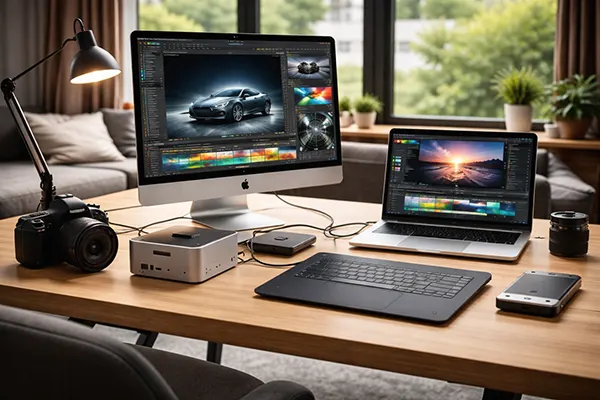
Display Quality and Port Selection for Professional Work
MacBook Pro models in 2026 continue to feature Liquid Retina XDR displays with high brightness, wide P3 colour gamut and accurate factory calibration. For video editors working in HDR, the 14-inch and 16-inch panels provide up to 1600 nits peak brightness in HDR content, which is suitable for previewing high dynamic range material without an external monitor.
Photographers benefit from the consistent colour accuracy and high contrast ratio, reducing reliance on immediate external calibration for field work. However, for studio-level colour-critical projects, pairing the Mac with a calibrated reference monitor remains advisable, particularly for print preparation or broadcast delivery.
For 3D artists, display size often influences comfort more than colour space. A 16-inch model or an external 27–32 inch 4K or 5K monitor improves viewport management and timeline navigation. Resolution scaling in macOS allows flexible workspace layouts without sacrificing clarity.
Ports, Connectivity and Workflow Efficiency
Modern MacBook Pro models typically include multiple Thunderbolt ports, HDMI, an SD card slot and MagSafe charging. For media professionals, built-in SD support reduces the need for dongles during photography sessions. HDMI 2.1 enables connection to high-refresh 4K or even 8K displays, useful for video monitoring.
Thunderbolt 4 and Thunderbolt 5 offer high bandwidth for external GPUs (where supported), storage arrays and docking stations. If your workflow depends on multiple external drives, audio interfaces and monitors, ensuring at least three Thunderbolt ports prevents bottlenecks and cable swapping.
Desktop Macs such as Mac Studio provide additional connectivity and sustained performance under heavy loads due to improved thermal headroom. For long rendering sessions or continuous 8K editing, a desktop configuration may deliver more consistent results than a portable machine, even with similar chip specifications.
Related articles
-
 iPhone 17e vs Used iPhone 16 Pro: Whi...
Choosing between a brand-new mid-range iPhone and a previously owned …
-
 MacBook for Study and Office in 2026:...
Choosing a MacBook for study or office work in 2026 …
-
Mac for Media Work in 2026: How to Ch...
Choosing a Mac for professional media work in 2026 is …