
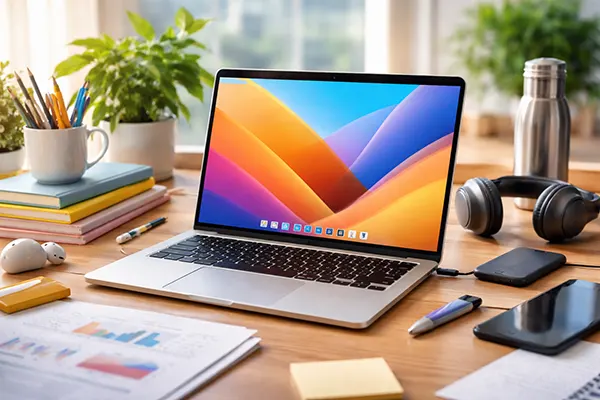
MacBook for Study and Office in 2026: A Base Configuration That Realistically Lasts 4–5 Years
Choosing a MacBook for study or office work in 2026 is less about the cheapest model and more about selecting hardware that will remain comfortable to use for several years. Many students and professionals expect their laptop to serve throughout an entire degree or multiple work cycles without feeling slow or outdated. Apple’s transition to Apple Silicon has significantly improved longevity, but configuration still matters. RAM capacity, SSD size, display quality, and port availability determine whether a MacBook will remain practical after four or five years of updates, applications, and daily workload.
Processor and RAM: The Minimum That Still Feels Fast After Several Years
Apple Silicon chips have changed how long laptops remain responsive. Even entry-level processors such as the M2 and M3 perform far better than older Intel-based MacBooks, especially in everyday tasks such as document editing, web research, video calls, and light media work. For study and office tasks in 2026, an Apple M3 or M2 chip already offers more than enough CPU power for the next several years.
However, RAM is the component that most strongly affects long-term usability. Many applications have become heavier, and browsers often run dozens of tabs simultaneously. While Apple still sells models with 8 GB of unified memory, that amount is increasingly restrictive when multiple productivity tools, cloud services, and communication apps run together.
For a laptop expected to last four to five years, 16 GB of unified memory is the realistic baseline. This capacity allows smooth multitasking, comfortable browser usage, and stable performance when editing documents, spreadsheets, presentations, or even basic photo and video material. It also ensures that macOS updates in the coming years will not feel constrained by memory limitations.
Why Unified Memory Makes RAM Choice Even More Important
Apple Silicon uses unified memory, meaning that RAM is shared between the CPU, GPU, and other components. This architecture improves performance and efficiency, but it also means memory cannot be upgraded later. Once the MacBook is purchased, the chosen RAM capacity remains fixed for the entire lifespan of the machine.
Because graphics processing and system tasks use the same memory pool, running demanding browsers, design tools, or collaboration software can consume RAM quickly. Students working with large PDF files, research tools, or multiple apps often notice that 8 GB becomes tight within only a few years.
Choosing 16 GB from the start provides more headroom for future software requirements. It also allows the system to rely less on SSD swap memory, which helps maintain both performance and storage health over time.
Storage and SSD Size: Avoiding the Most Common Limitation
Storage capacity is another area where entry-level configurations may create problems later. Many base MacBook models still start with 256 GB SSD storage, which may seem adequate initially but quickly fills with system files, applications, documents, and cached data.
In real usage, macOS updates, development tools, office suites, cloud synchronisation folders, and media files gradually consume available space. When the system disk becomes nearly full, performance can degrade because macOS relies on free space for temporary processes and memory swapping.
For a MacBook expected to last through several years of work or study, a 512 GB SSD should be considered the practical starting point. This capacity provides enough space for productivity software, academic materials, personal files, and temporary working data without constant storage management.
SSD Speed and Longevity in Apple Silicon MacBooks
Apple’s SSDs are among the fastest available in consumer laptops. Even base models provide read and write speeds that significantly exceed typical external storage solutions. This speed helps maintain smooth system performance when opening applications, indexing files, or working with large documents.
However, SSD size also affects long-term reliability. Larger drives distribute data writes across more memory cells, which can slightly extend their effective lifespan. While modern SSD wear is rarely a problem for normal users, additional capacity offers both performance and durability benefits.
Another practical advantage of a larger SSD is reduced dependence on external drives or cloud storage. Students and office workers often prefer to keep working files available locally, especially when internet access is inconsistent or when travelling.
Display, Ports, and Practical Hardware for Daily Work
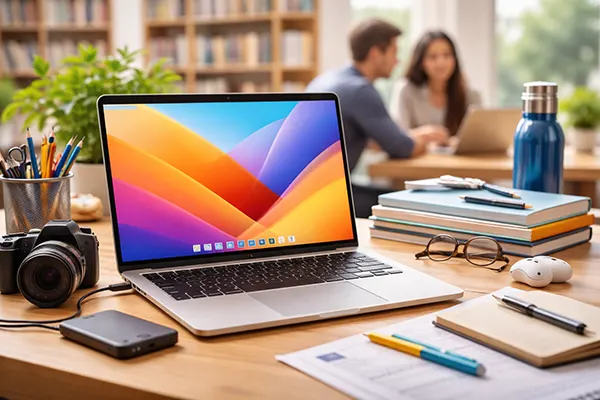
Display quality plays a surprisingly large role in long-term comfort. Many people spend several hours per day looking at their laptop screen, so clarity, brightness, and colour accuracy matter more than raw performance in some cases. MacBook Air and MacBook Pro models equipped with Retina displays provide sharp text and comfortable reading, which is essential for writing, studying, and analysing documents.
Brightness also matters when working in different environments such as lecture halls, libraries, offices, or public transport. Modern MacBooks typically offer brightness levels around 500 nits or higher, which is sufficient for most lighting conditions and helps reduce eye strain during long sessions.
Keyboard quality and battery life also contribute to long-term usability. Apple’s recent keyboard designs have proven reliable compared to earlier butterfly keyboards, while Apple Silicon processors allow many MacBooks to reach 15–20 hours of mixed productivity use. For students and mobile professionals, this reduces dependence on charging during the day.
Ports and Connectivity: Planning for Real Workflows
Port selection has become an important factor for people who connect accessories, monitors, or storage devices. Many MacBook Air models rely primarily on USB-C ports, which work well with modern peripherals but may require adapters for older devices such as HDMI monitors or USB-A storage drives.
MacBook Pro models provide additional flexibility through more ports, including HDMI and SD card slots in some configurations. This can be helpful for students working with media projects or office professionals who regularly connect to external displays in meeting rooms.
For long-term ownership, a practical approach is choosing a MacBook with at least two USB-C/Thunderbolt ports and planning to use a compact USB-C hub when necessary. This setup supports external displays, storage drives, and network adapters while maintaining portability and minimal cable clutter.
Related articles
-
 iPhone 17e vs Used iPhone 16 Pro: Whi...
Choosing between a brand-new mid-range iPhone and a previously owned …
-
MacBook for Study and Office in 2026:...
Choosing a MacBook for study or office work in 2026 …
-
 Mac for Media Work in 2026: How to Ch...
Choosing a Mac for professional media work in 2026 is …